
concept · browser-printing
What Is Browser Printing?
Quick answer
Browser printing converts the current web document into a print-oriented layout and sends it through the browser's print workflow. Developers can start that workflow with window.print() and adapt the output with print CSS, but the browser and user retain control over the printer and final settings. Standard browser printing is a good fit for documents printed occasionally. Workflows that require silent, automatic, or device-specific printing generally need capabilities outside the standard web printing API.
Browser printing is the process of creating a printed copy or PDF from content displayed in a web browser. A user starts it from the browser menu, a keyboard shortcut, or a website button that calls window.print(). The browser then formats the document for paged media and gives the user an opportunity to choose settings such as the destination printer, page range, orientation, margins, and number of copies.
What you will learn
- What happens between clicking Print and receiving a paper or PDF copy.
- Which parts of the output a web application can control.
- Why browser printing normally requires user interaction.
- When browser printing is sufficient and when another approach is more appropriate.
How browser printing works
Browser printing has four main stages:
- The print request begins. The user selects the browser’s print command, uses a shortcut, or activates a page control that calls
window.print(). - The browser creates a print layout. It applies rules for printed media, divides continuous web content into page boxes, and prepares a preview.
- The user confirms the output. The browser or operating-system interface lets the user select an available printer or a PDF destination and adjust supported settings.
- The operating system handles the job. For physical output, the selected printer driver and print spooler translate, queue, and deliver the job to the device.
The exact interface and handoff differ by browser, operating system, and printer. The web page participates in document layout, but it does not own the complete printing pipeline.
What developers can control
A website can provide a print button with the standard JavaScript method:
<button type="button" onclick="window.print()">Print this page</button>
It can also use CSS to create a print-specific presentation:
@media print {
  nav,
  .print-button {
    display: none;
  }

  body {
    color: #000;
    background: #fff;
    font-size: 11pt;
  }

  a {
    text-decoration: none;
  }
}

@page {
  size: auto;
  margin: 12mm;
}
Print CSS can help developers:
- Hide navigation, buttons, and other screen-only controls.
- Adjust typography, color, spacing, and content visibility.
- Suggest page size, orientation, and margins with
@page. - Manage many page breaks with fragmentation properties such as
break-before,break-after, andbreak-inside. - React around the print workflow with
beforeprintandafterprintevents.
These rules influence the document presented to the print system. They do not guarantee a particular physical result because browser support, user choices, printer capabilities, drivers, printable areas, and paper all affect the output.
What developers cannot reliably control
The standard browser printing workflow does not give ordinary page JavaScript a general-purpose API to silently choose a local printer and submit an arbitrary job with no user confirmation. A page also cannot assume that it can enforce settings such as the number of copies, duplex mode, paper tray, cutter behavior, or cash-drawer commands.
This separation is intentional: the browser mediates access to local resources and gives the user control over the final output. The HTML Standard defines window.print() as prompting the user to print and says the user agent should offer the user an opportunity to obtain a physical or represented form of the document.
Some managed or kiosk environments can use browser policies, preconfigured software, or platform-specific integrations. Those are deployment capabilities, not portable behavior supplied by a normal public web page.
Browser printing vs. direct printer control
| Requirement | Standard browser printing | Direct or local printing integration |
|---|---|---|
| Start from a web page | Yes | Yes |
| Print or save a page as PDF | Yes | Depends on the integration |
| Use HTML and print CSS | Yes | Depends on the renderer |
| Require user confirmation | Normally yes | Can be optional in trusted environments |
| Select a printer automatically | Not through the general window.print() API | Often possible after configuration and authorization |
| Send raw printer commands | No | Possible with a compatible device and integration |
| Control receipt cutters or cash drawers | No | Possible with supported hardware and commands |
| Produce consistent unattended jobs | Limited | Designed for this use case |
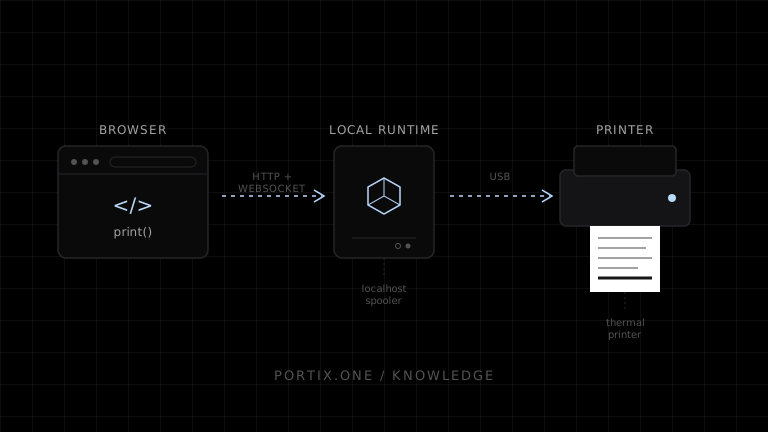
“Direct” does not necessarily mean that an internet page talks freely to hardware. A common architecture uses a trusted local runtime or managed service that receives authorized print jobs and communicates with the operating system or printer.
When browser printing is a good fit
Use browser printing when:
- A person is present and can confirm each job.
- The content is a report, form, article, invoice, ticket, or other page-oriented document.
- Saving to PDF is a valid destination.
- Small differences between browsers or printers are acceptable.
- You do not require printer-specific commands or unattended operation.
In these cases, window.print() plus well-tested print CSS is usually the simplest solution. A separate printing product may add unnecessary setup.
When browser printing is not enough
Consider a trusted local printing runtime, desktop application, managed kiosk configuration, or print service when the workflow requires:
- Printing without a dialog after an authorized setup.
- Routing jobs automatically to a named printer.
- High-volume receipt or label printing.
- Raw protocols or command languages such as ESC/POS, ZPL, or printer-specific instructions.
- Hardware actions such as cutting paper or opening a cash drawer.
- Centralized queues, retries, job status, or fleet management.
- Tighter control over output across known devices.
The right choice depends on the document, hardware, deployment environment, security model, and acceptable amount of user interaction.
Common browser-printing problems
The screen layout looks bad on paper
Responsive screen styles are not automatically good print styles. Add an @media print stylesheet, remove nonessential interface elements, use print-appropriate dimensions, and test long content.
Content is clipped or split incorrectly
Large tables, fixed-width elements, positioned content, and unbreakable text can overflow a finite page box. Prefer flexible widths and apply fragmentation rules to components that should remain together.
Colors or backgrounds are missing
Browsers may expose user settings that control background printing, and physical devices reproduce colors differently. Do not rely on background color alone to communicate meaning.
A website button still opens a dialog
That is the expected behavior of the standard browser print workflow. Calling window.print() starts the user-controlled printing process; it is not a silent-print command.
Limitations and implementation notes
- CSS Paged Media Level 3 is a Working Draft, and browser implementations do not necessarily support every feature described by the specification.
- A printer’s non-printable region can affect margins and clipping.
- Print preview is useful but is not a substitute for testing representative physical printers, paper sizes, drivers, and operating systems.
- The
afterprintevent indicates that the print workflow has ended; it does not provide a portable guarantee that a physical page was successfully produced. - Browser and platform behavior can change. Revalidate critical workflows against the versions and devices you support.
Frequently asked questions
Is browser printing the same as window.print()?
No. Browser printing is the full browser-managed workflow. window.print() is the standard JavaScript method a page can use to request that workflow for the current document.
Can a browser print without showing the print dialog?
Not as a general capability available to an ordinary public web page through window.print(). Silent printing requires a controlled environment or an authorized integration outside that standard method.
Can a website choose my printer?
The normal web printing API does not expose a portable method for page JavaScript to select an installed printer automatically. The user normally chooses the destination through browser or operating-system UI.
Can CSS set the paper size?
The size descriptor inside @page can express a preferred page size and orientation. The final result still depends on browser support, the selected destination, available paper, and user settings.
Can browser printing produce a PDF?
Yes, when the browser or operating system offers a PDF destination. The same print layout can be used for physical output or a representation such as a PDF.
Is browser printing suitable for receipt printers?
It can be suitable for occasional receipts when a user can confirm the job and the HTML layout is tested for the target paper. It is usually insufficient when a POS system needs silent routing, raw ESC/POS commands, automatic cutting, or reliable high-volume operation.
References
- HTML Standard — Printing — WHATWG, accessed Jul 18, 2026
- Window: print() method — MDN Web Docs, accessed Jul 18, 2026
- Printing — CSS — MDN Web Docs, accessed Jul 18, 2026
- CSS Paged Media Module Level 3 — W3C, accessed Jul 18, 2026
Related content
concept
Browser Printing Architecture
Understand the browser, paged-media renderer, print UI, operating-system spooler, driver, transport, and printer layers in a web printing system.
concept
Browser Printing Limitations
Understand the limits of window.print(), print CSS, printer selection, silent printing, job status, hardware commands, and cross-browser consistency.
concept
Browser Printing Security
Learn the trust boundaries, threats, privacy risks, and practical controls involved when a website prints through a browser or a local printing integration.
concept
How Browser Printing Works
Follow a browser print job from window.print() and print CSS through preview, the operating-system spooler, printer driver, and physical device.