
pillar · esc-pos
ESC/POS Explained
Quick answer
ESC/POS is not a universal page-description language and compatible printers are not identical. Build commands as bytes, initialize known state, select supported modes, encode text using the active code page, validate images and codes against printable width, then feed and cut. Maintain a profile and paper test suite for every supported model and firmware.
ESC/POS is a command system created for point-of-sale printers. An application sends bytes that mix printable data with control sequences for formatting and hardware features.
Commands and data share one stream
A receipt may contain ordinary text bytes plus sequences introduced by values commonly described as ESC, GS, or FS. Commands can change alignment, emphasis, font, code page, image mode, barcode parameters, or mechanical behavior.
const ESC = 0x1b;
const GS = 0x1d;

const initialize = Uint8Array.of(ESC, 0x40);
const alignCenter = Uint8Array.of(ESC, 0x61, 0x01);
const cut = Uint8Array.of(GS, 0x56, 0x00);
These bytes are illustrative and must be checked against the target manufacturer’s reference. Do not build raw output through accidental Unicode string conversions.
A receipt pipeline
- Select a printer profile.
- Initialize the printer.
- Choose character set, code page, font, and layout.
- Encode text and rasterize unsupported content deliberately.
- Add images, QR codes, or barcodes using validated commands.
- Reset temporary modes where needed.
- Feed beyond the cutter and append one cut command.
- Submit the immutable byte buffer through a raw-capable transport.
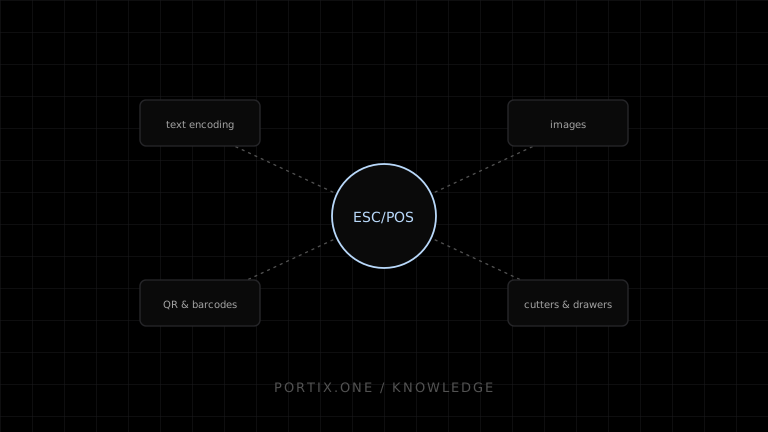
Text encoding
JavaScript uses Unicode strings; many receipt printers use legacy single-byte tables. The selected ESC/POS table and application encoder must agree. Table numbers vary between models. Reject, replace, transliterate, or rasterize unsupported characters explicitly rather than allowing silent corruption.
Images
Resize to the printer’s dot width, convert to grayscale, apply an appropriate threshold or dithering method, pack monochrome pixels into bytes, and obey row and buffer limits. Logos with fine gray detail often need manual simplification for thermal paper.
QR codes and barcodes
Native commands may reduce payload size and produce crisp output. Validate model support, data-length fields, allowed characters, module width, height, error correction, and quiet zones. Always compare a scanner’s decoded value with the source.
Cutters, drawers, and status
Hardware commands are privileged. Send cutter commands only to models with compatible hardware and after sufficient feed. Cash-drawer pulses require correct wiring, port, timing, authorization, and audit. Status responses vary by connection and model and should not be generalized across the fleet.
Compatibility strategy
Create profiles containing model identifiers, printable dots, code pages, supported image mode, QR/barcode parameters, cutter variant, drawer settings, transport limits, and tested firmware. Run golden byte tests plus physical print-and-scan tests.
Common failures
- Commands print literally: wrong rendered/raw path.
- Accents break: encoding and code page disagree.
- Image is blank: width, length, or packing is wrong.
- QR/barcode will not scan: dimensions, data, or quiet zone is invalid.
- Cut occurs early: duplicate command or malformed binary length.
References
- ESC/POS command reference — Epson, accessed Jul 21, 2026
- RAW data type — Microsoft Learn, accessed Jul 21, 2026
Related content
comparison
ESC/POS vs Windows Printer Drivers
Compare direct ESC/POS output with Windows driver-based printing for receipt devices, layout, compatibility, control, and maintenance.
concept
ESC/POS Character Encoding
Learn why ESC/POS text prints as incorrect symbols and how code pages, international sets, Unicode, byte encoding, fonts, and rasterization affect multilingual receipts.
concept
ESC/POS Commands Explained
Understand ESC/POS command bytes, parameters, printer state, buffers, command families, status, cutting, and safe command construction.